How to add Bates numbers to a PDF.
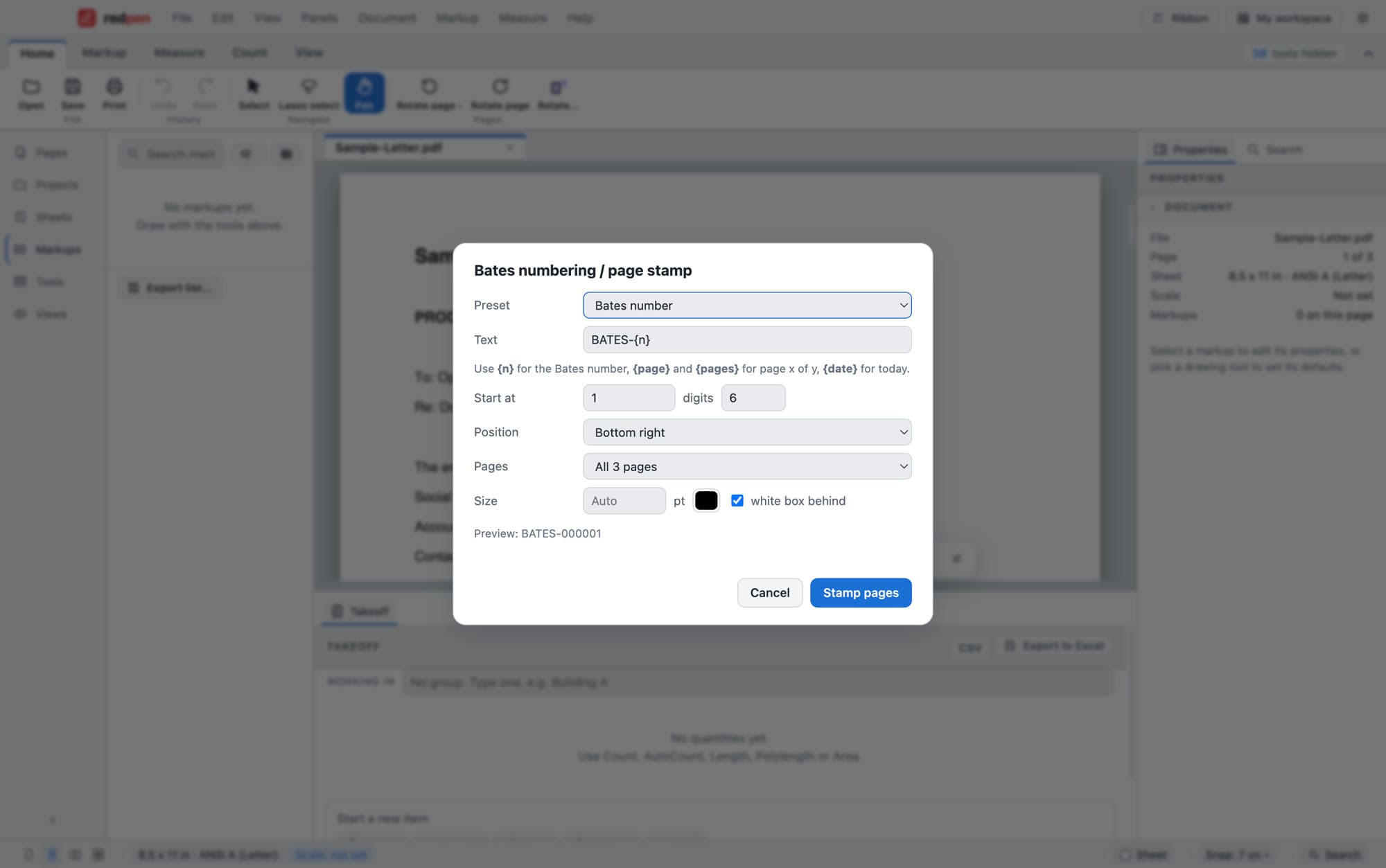
Four steps.
- 1Open the document
Redact first if the set needs it, so the final numbers land on the finished pages.
- 2Open Bates numbering
Choose Bates numbering / page stamp. Pick a preset or type your own text, such as ABC-{n}.
- 3Set the numbers
Choose the start number, how many digits, the corner and the size. The preview shows the first number.
- 4Choose the pages and stamp
Stamp every page, the current page or a range such as 2-3, 5. The numbers run in order and stay searchable text.
Number the pages after redaction so each redacted page still shows its number.
Use the Page x of y preset, or a protective-order legend with the number on each page.
The stamp sits at the corner of the page as it is displayed, even on rotated pages.
Short answers.
How do I add Bates numbers to a PDF?
Can I start at a number other than 1?
Are the numbers searchable?
Can I number only some pages?
Screenshots use a fictional document.
Put Redpen on your next bid set.
14 days of every feature. No credit card. If it doesn't save you time on the first set, don't keep it.