How to remove hidden data from a PDF.
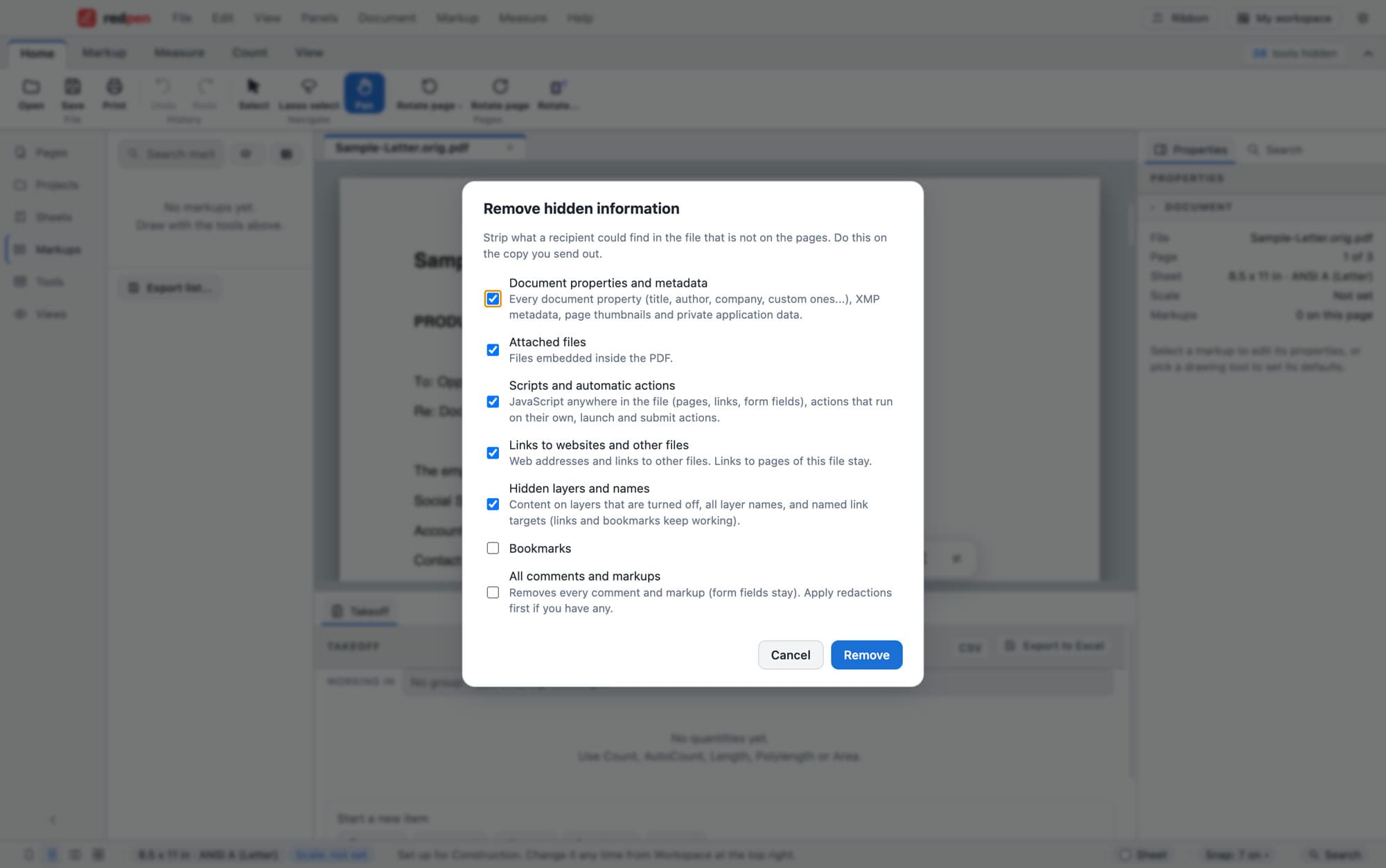
Four steps.
- 1Work on a copy
Do this on the copy you are going to send, not on your original.
- 2Open Remove hidden information
Choose it from the menu. A dialog lists everything it can strip.
- 3Choose what to strip
Document properties and metadata, attached files, scripts and automatic actions, links, and hidden layers are on by default. Bookmarks and comments are optional.
- 4Remove and save
Remove, then save the copy. Apply any redactions first if you have them.
Title, author, company, custom properties, XMP metadata, attachments and page thumbnails can all travel with the file.
Bookmarks and comments stay unless you tick them. Tick them for a final copy.
Redact first, then remove hidden information, then number the pages.
Short answers.
How do I remove metadata from a PDF?
Does it remove attachments and scripts?
Will my links still work?
Does it change my original?
Screenshots use a fictional document.
Put Redpen on your next bid set.
14 days of every feature. No credit card. If it doesn't save you time on the first set, don't keep it.