Compare a page
See exactly what changed between two versions.
Open the old and new versions of a contract, a fee schedule or a drawing. Redpen lines up the two pages, finds what was added or taken out in the text and in the drawing, and walks you through each change.
- 1TextMonthly bookkeeping $450 is now $525
- 2AddedLate payment charge
- 3Taken outFree first-month review
A-02.1WalkthroughFree
Two revisions of the sample plan, compared.
- 01
Every change, listed
Rev B of the sample set against Rev A: one added note and one added piece of drawing. Each row takes you to the change; the list exports to CSV.
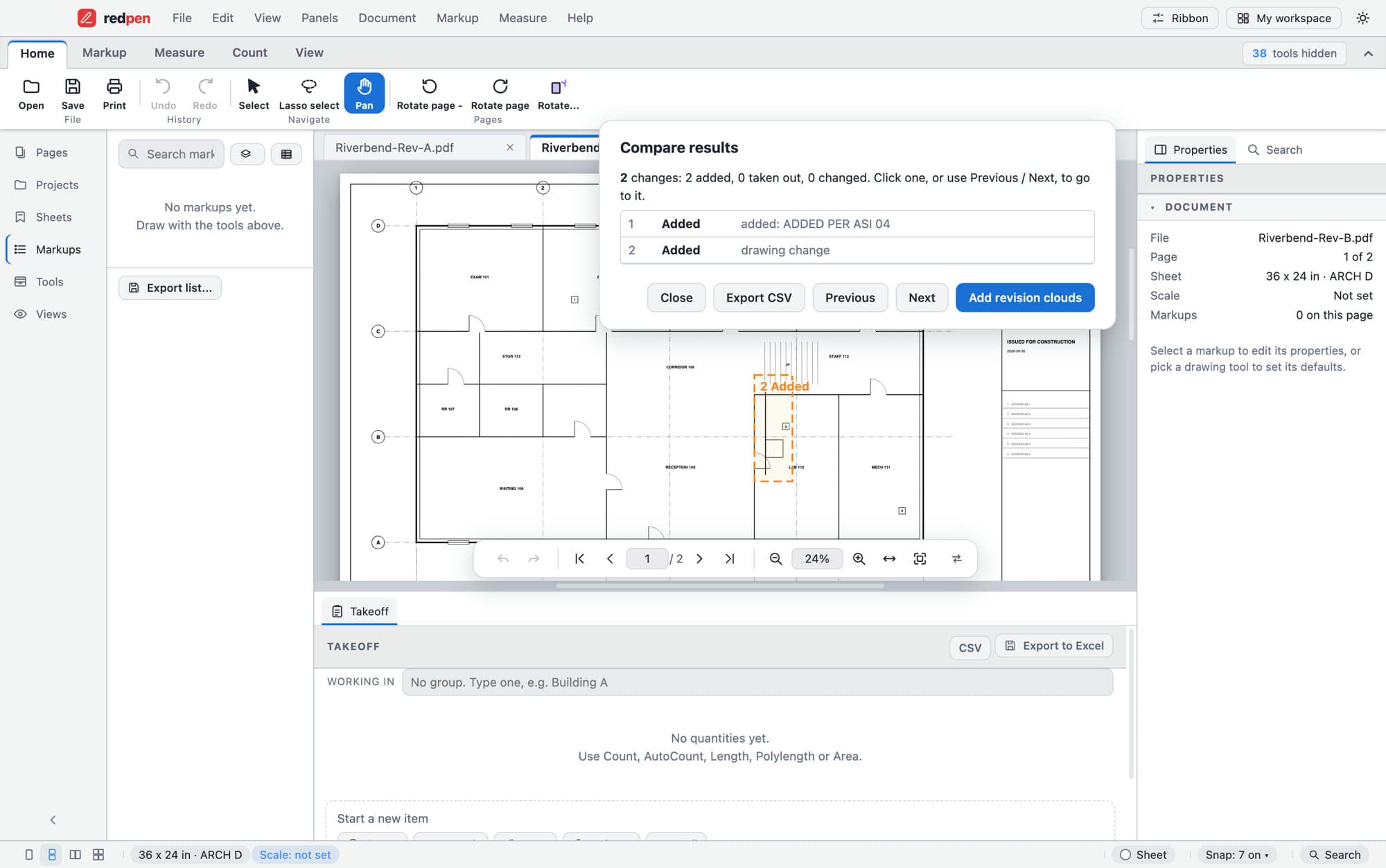
Compare results · Riverbend Rev B against Rev A - 02
Shown where it happened
The change is outlined on the sheet. Add revision clouds and each one becomes an ordinary markup with a note you can edit and send on.
Riverbend-Rev-B.pdf · Lab 110
A-02.2What it doesFree
What it does.
- Lines them up for you
- Redpen fits scale and rotation so the two versions sit on top of each other. If they still don't line up, align them by hand.
- Text and drawing
- Changes in the words and changes in the linework are both found, so an edited fee and a moved wall both show up.
- Step through every change
- Previous and Next zoom to each change in turn, so nothing gets skimmed past.
- Clouds and a change list
- Changes are clouded on their own layer, each with a note saying what changed. Export the list to CSV.
A-02.3How it goes
Comparing two versions.
- 01Open both versions
Open the new version, and the older one in another tab.
- 02Compare
Choose Document > Compare with an older version and pick its page.
- 03Review and mark
Step through the changes, add revision clouds, or export the list.
A-02.4Also
What compare looks at.
- Free, with no time limit
- Revision clouds are ordinary markups you can edit
- Export the change list to CSV
- Sheet overlay lays two versions on top of each other (Pro)
- Both files stay on your computer
A-02.5Limits
What it does not do.
- Compare is picture-based. It lines up the two pages and lists where the linework and the text differ; it doesn't know what a change means.
- Changes in text are listed when both pages have a text layer. Run OCR on a scan first.
- This compares one page at a time. A whole revised drawing set is Compare drawing sets (Pro).
A-02.6Questions
Compare PDFs: short answers.
Can I compare two PDFs to find the differences?
Yes. Open both, then choose Document > Compare with an older version. Redpen lists every change it finds and zooms to each one.
Does it work on documents, or only drawings?
It compares any two PDF pages. It looks at what is drawn and at the text, so drawings and text documents both work.
What if the pages don't line up?
Redpen fits scale and rotation first. If a large part still differs, it tells you, and you can align the pages by hand and compare again.
Is comparing PDFs free?
Comparing a page with an older version is part of the free plan. Sheet overlay, which lays two revisions on top of each other so you can see the difference by eye, is Pro.
Come on in. The viewer is free.
Download Redpen and open your first PDF in a minute. The free app needs no account. Every new account can try Office or Pro free for 14 days, no card.
Windows & Mac · No credit card · Your files stay on your computer