Every measure tool, in one place.
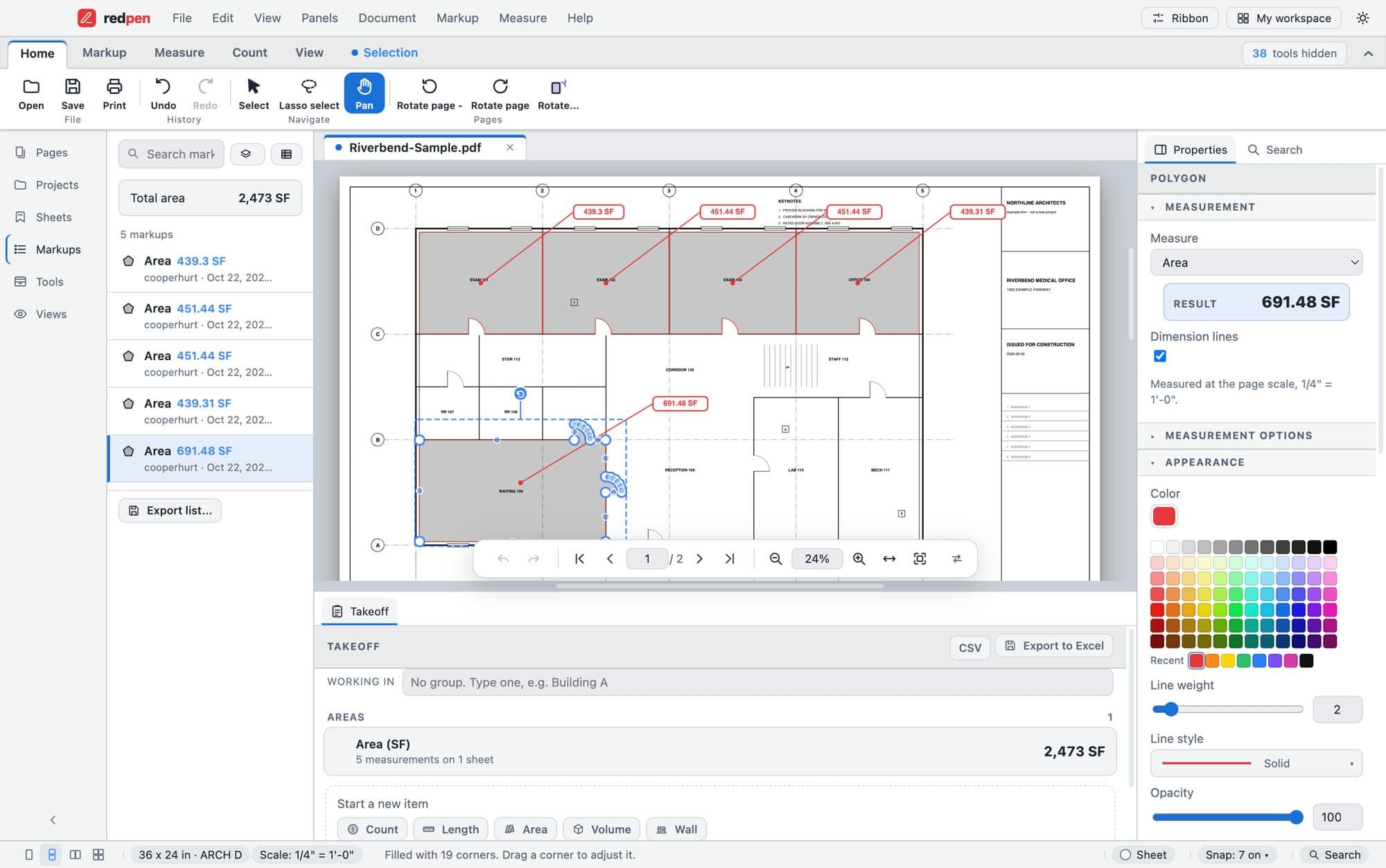
A room measured in one click.
- 01
Fill the room
Dynamic Fill: click inside a room and Redpen traces the walls, fills the area and labels it with its result. Enclosed holes become cutouts, and you can drag a corner to adjust the outline.
Riverbend-Sample.pdf · rooms filled - 02
Read the result
The Properties panel gives the result, 691.48 SF here, and says which scale it was measured at. Dimension lines can be switched on.
Properties · Waiting 106 - 03
See the total
Every measurement is in the markups list, with a total area at the top: 2,473 SF for these five rooms.
Markups list · total area
What it does.
- Length, polylength, perimeter
- Straight runs, runs with turns, and the outline of a shape, with dimension-style labels.
- Area, with cutouts
- Area and rectangle area, with cutouts and rectangle cutouts for openings and shafts. Net area never goes negative.
- Volume
- From an area and a depth, for slabs and footings.
- Wall area
- From a run and a height.
- Angle, radius and diameter
- For corners and curved work.
- Dynamic Fill
- Click inside a room or any closed shape. It traces the walls and turns enclosed holes into cutouts.
- Footings
- A measure tool for footings, alongside volume.
- Snapping
- To ends, midpoints, centres, intersections and more. Open on every plan, and it works on every markup, not only measurements.
Measuring a sheet.
- 01Set the scale
Run Autoscale, calibrate against a dimension you know, or pick a preset.
- 02Measure
Pick a tool from the Measure tab, or type it in the command bar (/ or Ctrl+K). Snapping keeps each point on the drawing's lines.
- 03Total and export
Totals add up by item in the Takeoff panel. Export them to Excel or CSV.
Around the tools.
- Cutouts for doors, windows and openings
- A depth for slabs and footings
- Command bar: press / and type a command, or a length like 12'6"<45
- Totals by item, exported to Excel or CSV
What it does not do.
- Every measure tool needs a scale. On a sheet that reads Scale: not set, set one first.
- Dynamic Fill works best on a closed room. If the room is open to the rest of the sheet, close the gap in the wall or draw the area by hand.
- Snapping follows the lines in vector PDFs. On a scan you can still measure once the scale is set, but points go where you click.
Measure tools: short answers.
Which measure tools does Redpen have?
Do I need a higher plan for perimeter, volume or Dynamic Fill?
Does snapping work on scanned drawings?
Come on in. The viewer is free.
Download Redpen and open your first PDF in a minute. The free app needs no account. Every new account can try Office or Pro free for 14 days, no card.
Windows & Mac · No credit card · Your files stay on your computer