Measure your first room on a PDF plan.
- Plan
- ProEvery new account can try Pro free for 14 days, no card.
- Use this file
- The Riverbend sample set: a floor plan and a lighting plan, two sheets on 36 x 24 in ARCH D. Use page 1, the floor plan. Download Riverbend-Sample.pdf
Four steps.
Step 1: Download and open the sample
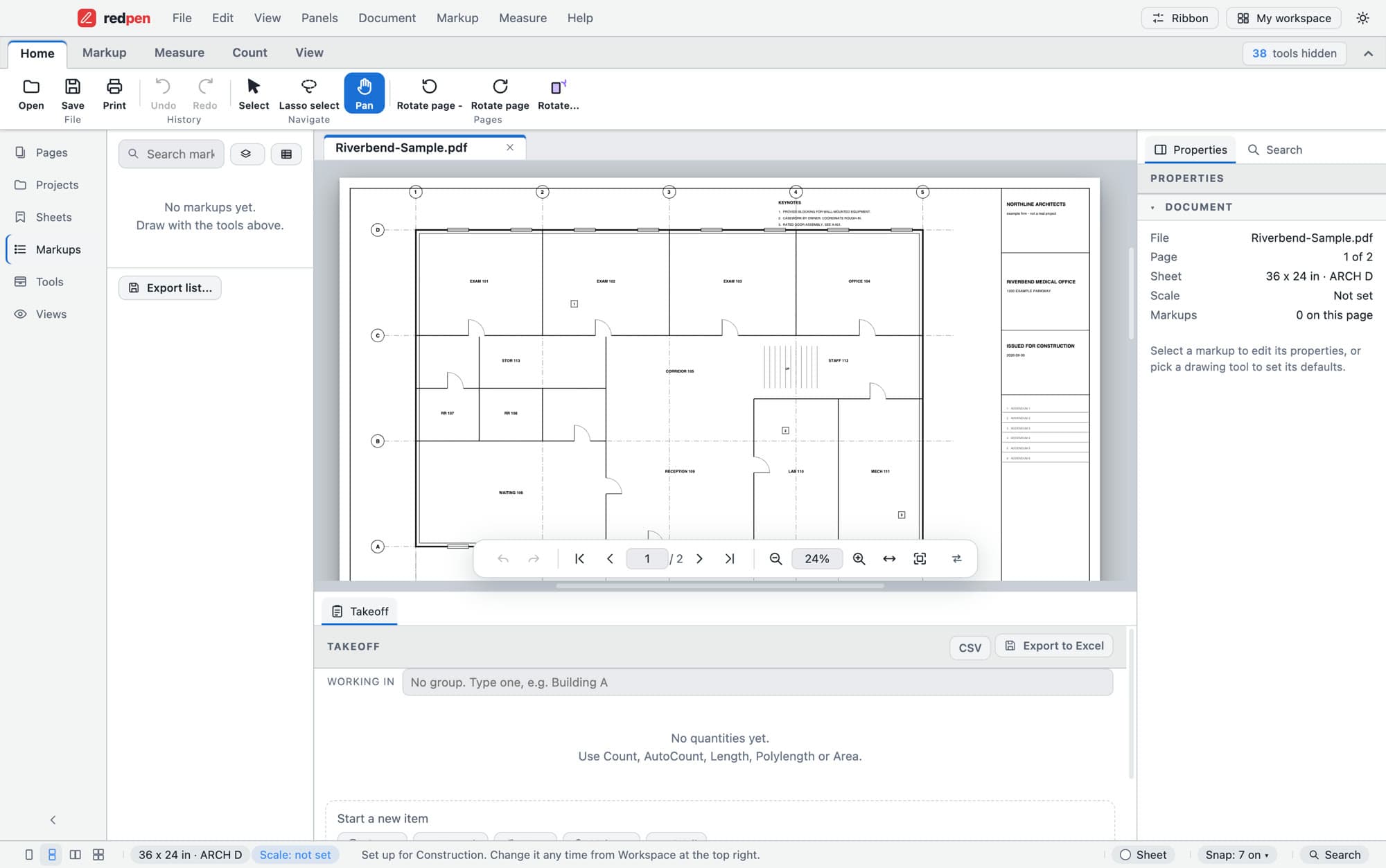
Download Riverbend-Sample.pdf and open it in Redpen. The properties panel shows page 1 of 2, a 36 x 24 in ARCH D sheet and the scale as not set.
Properties · scale not set Step 2: Set the scale
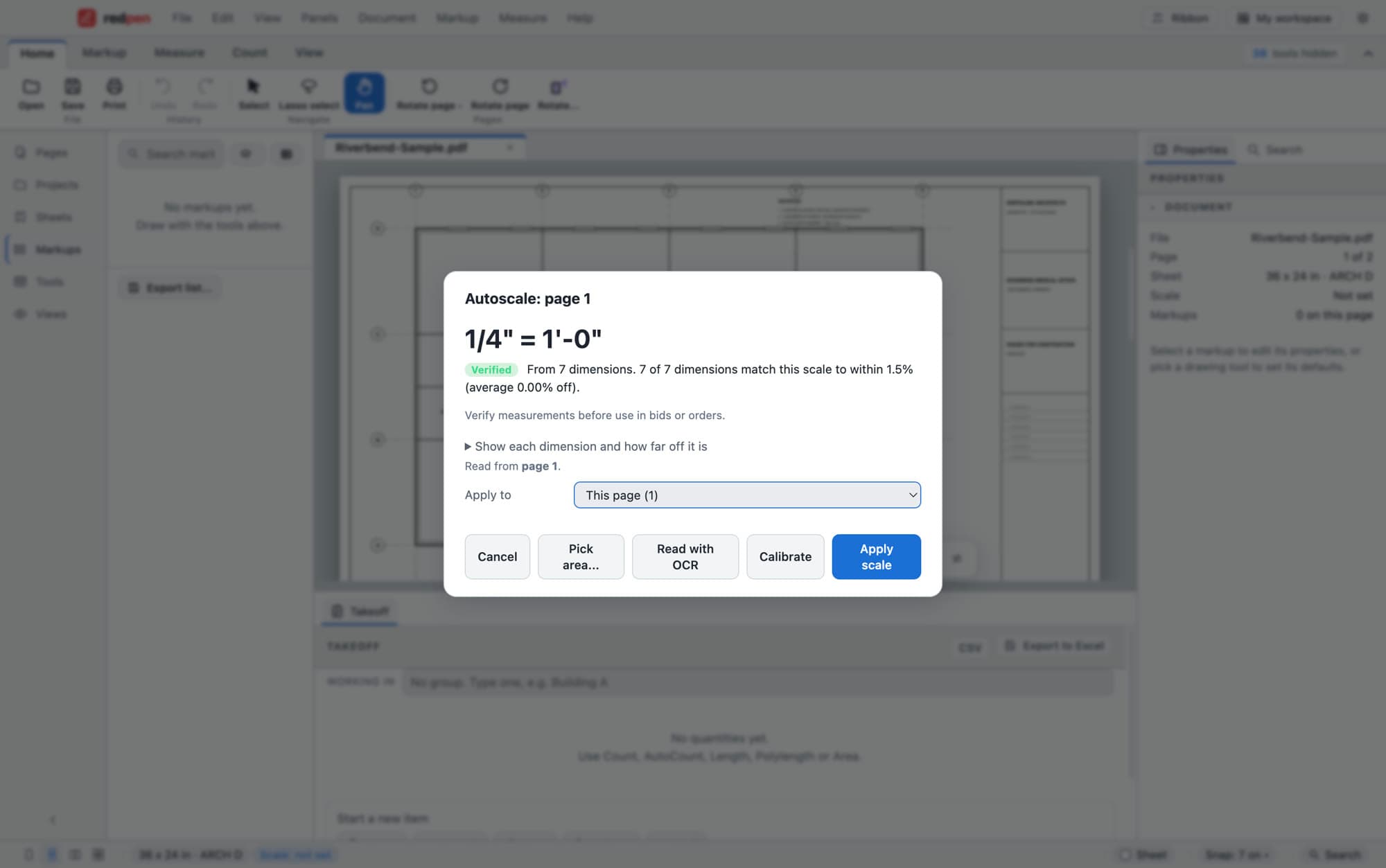
Run Autoscale on page 1. It reads the dimension strings printed on the sheet and shows the scale it found. Choose Apply scale to apply it to this page. To set it by hand instead, choose Calibrate, click the two ends of a length you know and type the real distance.
Autoscale · page 1 Step 3: Measure a room
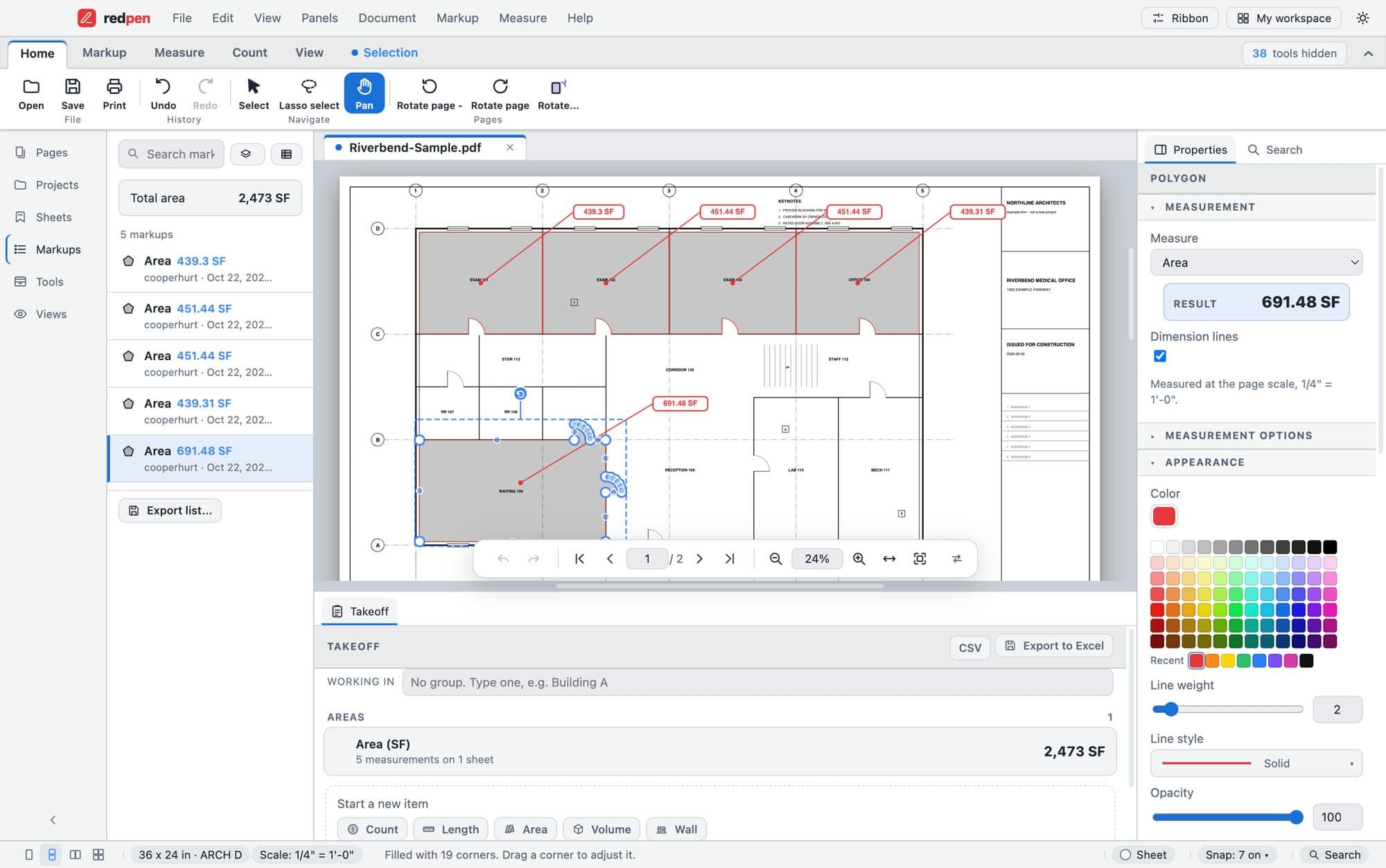
With Dynamic Fill, click inside a closed room. Redpen draws the area around the room at the page scale. Drag a corner if the outline needs adjusting.
Waiting 106 · 691.48 SF Step 4: Read the total
Measure a few more rooms. The markups list shows a total area, and the Takeoff panel adds the areas up by item, with CSV and Export to Excel buttons.
Takeoff panel · 2,473 SF
Autoscale reports 1/4" = 1'-0", verified from 7 of 7 dimensions. The status bar shows that scale, each room you click carries its area in square feet, and the Takeoff panel total grows with every room. We got 691.48 SF for Waiting 106 and 2,473 SF for five rooms.
- A room that is open to the rest of the sheet will not fill cleanly. Close the gap in the wall or draw the area by hand.
- Every number depends on the scale. If your Waiting 106 comes out far from 691.48 SF, go back and check the scale before you go on.
- Redpen says to verify measurements before use in bids or orders. The sample is for practice.
- Export gives you a saved Excel or CSV file, not a live link.
Measure something with a dimension written on the sheet. If the numbers match, the scale is right.
A sheet that was resized when it was printed to PDF can have a scale note that is wrong. Autoscale trusts the dimensions, not the note.
Short answers.
Where do I get a sample plan to practise on?
Do I have to use Autoscale?
Can I measure on a Mac?
Which plan do I need?
Screenshots use the Riverbend sample set, not a real project.
Try it on a file of your own.
Download Redpen and follow the steps. The free app needs no account. Every new account can try Pro free for 14 days, no card.
Windows & Mac · No credit card · Your files stay on your computer